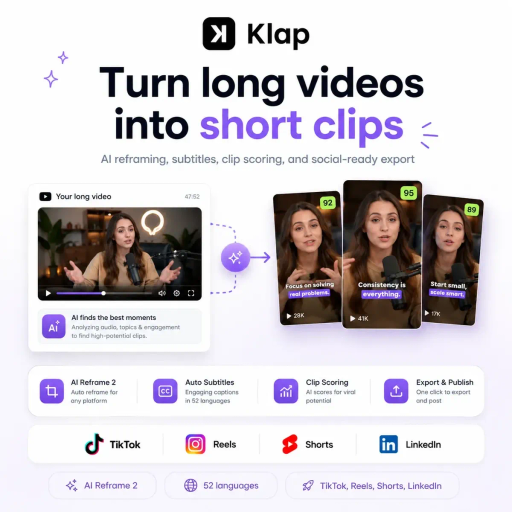
Klap is a tool that takes a long video you already recorded and hands back vertical clips ready for social media. You paste a YouTube link or upload the file. The AI then looks for the moments with the most potential, reframes the shot for a vertical format and adds captions. You will still review the result, of course. But a big part of the grunt work, like dragging clips around a timeline, is off your plate.
Anyone who records podcasts, live streams or webinars knows the problem well. The content is right there, full of great moments, but there is no time to watch it all again, mark the best parts and edit them one by one. In the end, a lot of valuable material just sits there and never becomes a Reel, a Short, a TikTok video or a LinkedIn post.
In the next sections, you will see what Klap does in practice, who it makes sense for, how to get started and what to keep in mind before bringing AI video clipping into your team routine.
The idea is simple: turn long videos into shorts with as little manual effort as possible. You give it a YouTube link or a video file, and the tool analyzes the content to find the main topics and the moments most likely to make a good clip.
Then it builds the clips in vertical format, creates automatic captions and repositions the image so the speaker or the main subject stays in view. Sounds like a small detail. It is not. A video shot horizontally usually loses a lot of punch when someone just crops the sides and hopes for the best.
That is where AI Reframe 2 comes in. This feature looks at each scene and applies a layout that fits it, with options like split screen, screen capture, a gameplay mode and face-focused framing. If you record tutorials with screen sharing or interviews with two people, the difference in the final result is usually easy to see.
The tool can also give each clip a social potential score. This helps you decide where to start when lots of options show up at once, though the score is only a hint and not a promise of reach. Klap also suggests captions and copy for your posts, and nothing is locked in: you can change fonts, colors, logo, subtitles and framing.
When it is time to publish, you can post and schedule straight to TikTok, YouTube, Instagram and LinkedIn. Language support is another highlight: editing and transcription work in 52 languages. AI dubbing, which covers 29 languages, is available on the higher paid plans.
The ideal user is someone who already makes long-form content on a regular basis. Podcasts, interviews, tutorials, product reviews, classes, internal training sessions and online courses all fit the bill. If that material exists and is gathering dust in a folder, the tool helps give it a second life.
Marketing teams can get a lot out of it too. Picture, just as an example, a small software company that runs one webinar a month. Instead of leaving the recording untouched after the event, the team can turn each presentation into a series of clips and spread that content over the following weeks. Businesses that speak to audiences in more than one language can benefit even more, thanks to multilingual transcription.
Now, one thing to keep in mind. Klap works best with videos that have plenty of talking, because the AI finds topics based on what is said. A video with only music and background footage, for example, probably will not get much out of the tool.
It also does not replace a full editor like CapCut. The focus here is speed in repurposing content. If you need frame-by-frame control, detailed animations or full command of the timeline, you will still need a traditional editor alongside it. Many people end up using both: Klap to generate the clips and another program for final touches.
If you are wondering how to use Klap, the path is short. The basic workflow goes roughly like this:
Before exporting, it is worth spending a few minutes on your visual identity. Adjust fonts and colors and add your brand logo. This little step keeps your videos from having that auto-edited look everyone spots from a mile away, and it gives your profile a more consistent feel.
Also check the framing picked for each clip. A segment with screen sharing might call for a split layout, while a more personal moment works better with a focus on the face. Think about where each video is going: what works on Reels or TikTok does not always match the more professional tone of LinkedIn.
A practical tip for your first test: choose a video you know well. That way it is easier to judge whether the AI nailed the best moments or missed something you consider essential.
Once everything is ready, just export the files or schedule the posts on your connected accounts. For companies that want to go further, there is API access, built for teams that want to plug the tool into their own workflow. The technical details of this integration are on the official site.
Klap is a paid tool. Upload limits, the number of clips generated, 4K export and dubbing vary depending on the plan you choose. Since prices and terms change over time, check the latest details on the official Klap site before you subscribe, including whether there is a way to try it first.
The tool works with dozens of languages, but it is worth confirming on the official site whether the language you work in is one of them and how dubbing works for your case. A test with a real video from your company will show you better than any description whether the transcription can handle the accent and vocabulary of your audience.
Automatic captions help a lot, but they make mistakes. Names, technical terms and slang are usually where they slip up the most. Read everything before you publish.
And watch each clip as if you had never seen the original video. Does the line make sense on its own? A quote taken out of context can send a very different message from the one intended, and that matters even more when the video represents a brand.
If the video includes guests, interviews or third-party footage, make sure you have permission to clip and publish that material. This saves you headaches with copyright claims, takedowns or friction with partners.
It pays to look around before deciding. OpusClip follows a similar approach, with a solid clip scoring system and captions, aimed at creators. CapCut is the pick for people who want manual editing, templates, effects and timeline control, but it takes more work when cutting down long videos.
Short AI focuses on creating short videos with AI and makes sense if your workflow does not rely much on long material you already recorded. 2short AI, on the other hand, is a direct option for taking YouTube videos to Shorts, with fewer publishing, style and framing options than Klap. Since these tools change fast, compare the current features of each one on their official sites.
If you already record long-form content and are looking for a tool to cut videos for Reels, Shorts, TikTok and LinkedIn without building an editing team, Klap deserves a try. It does not work miracles, and it does not skip the need for review. But it clears away a good chunk of the repetitive work and helps turn idle recordings into a steady presence on social media.
The best way to know if it fits your routine is to test it with real material and compare the time spent before and after. To keep exploring the topic, take a look at the other articles here on the site about video tools and AI marketing.
AI Reframe 2 with layouts like split screen, screencast, gaming and face focus, clip scoring based on social media potential, editing and transcription in 52 languages, AI dubbing in 29 languages on higher plans, direct publishing and scheduling to social networks, and API access.
Import via YouTube link or file upload, automatic detection of the best moments and topics, vertical format editing, automatic framing of faces and main subjects, AI-generated captions and text suggestions, customization of fonts, colors, logos and framing, 4K export on paid plans, publishing and scheduling to TikTok, YouTube, Instagram and LinkedIn.
Speeds up repurposing of long videos, builds a repeatable weekly clip routine, adapts horizontal recordings to vertical format, keeps brand visual identity consistent, expands reach to audiences in multiple languages, centralizes editing and publishing.
Podcasts, interviews, webinars, tutorials, product reviews, courses and educational content, training sessions, content creators and social media marketing teams
OpusClip, CapCut, Short AI, 2short AI
Fill out the form and our team will contact you within 24 hours.

Online
Atendimento
Find out how much the ideal website for your business costs
How many pages do you need?
Drag to select from 1 to 20 pages
In just 2 minutes, automatically find out how much a custom website for your business costs
More than 0+ companies have already calculated their quote
Select the additional features
Estimated monthly traffic
5,000 visitors per month
Do you already have a marketing automation platform?
Select your business industry
The industry may affect the customisation cost
Fill in your details to see the calculator result
Here is the estimated quote for your project
Redirecting to WhatsApp in 5 seconds...
Or click the button below to talk now
This is an estimated quote
Get in touch for a personalised quote
Preencha o formulário e nossa equipe entrará em contato.